Several issues I meet when plug in new RTX 4090 GPU for my workstation
Background hardware s
AMD 7950X3D
128GB(4x32GB) DDR5 6000MHz
Gigabytes X670 ATX
2TB samsung storage
[Nvidia RTX 4090]
Install 4090 hardware to the workstation
At first, the installation is smooth, just plug the PCIE slot into the upper one is fine.
However, I found I forgot to install the support for the RTX(it’s too big and heavy, definitely need the support.)
Then I have to reinstall it.
Try to install the driver
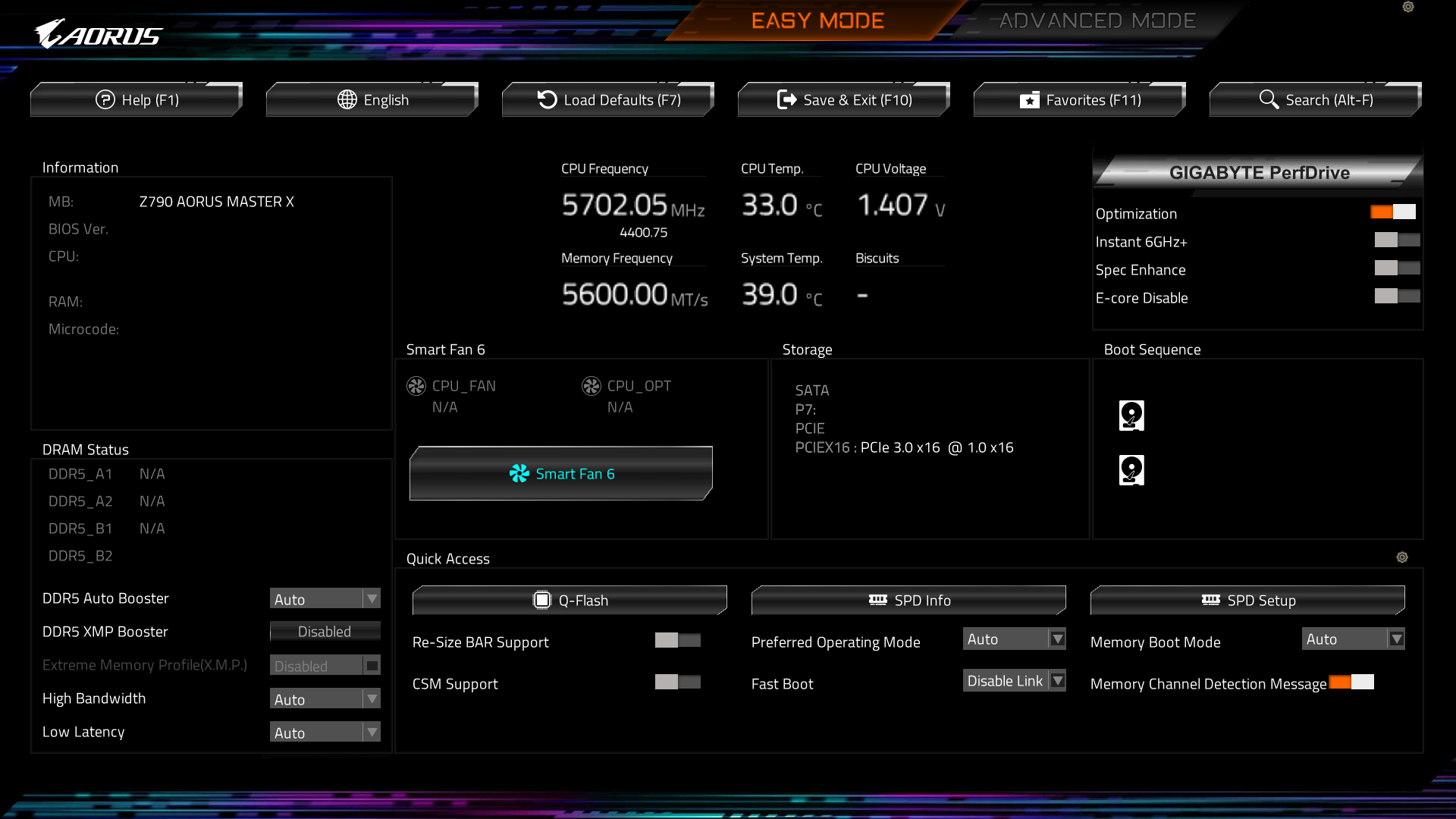
At first I use 2 (6+2) pin power supply for the GPU. However, I couldn’t find the device information in the UEFI (gigabytes F22B). And this version is
quiet different from other gigabytes UEFI/BIOS. I search for a long time and didn’t found any information useful.
New UI:
Old UI:
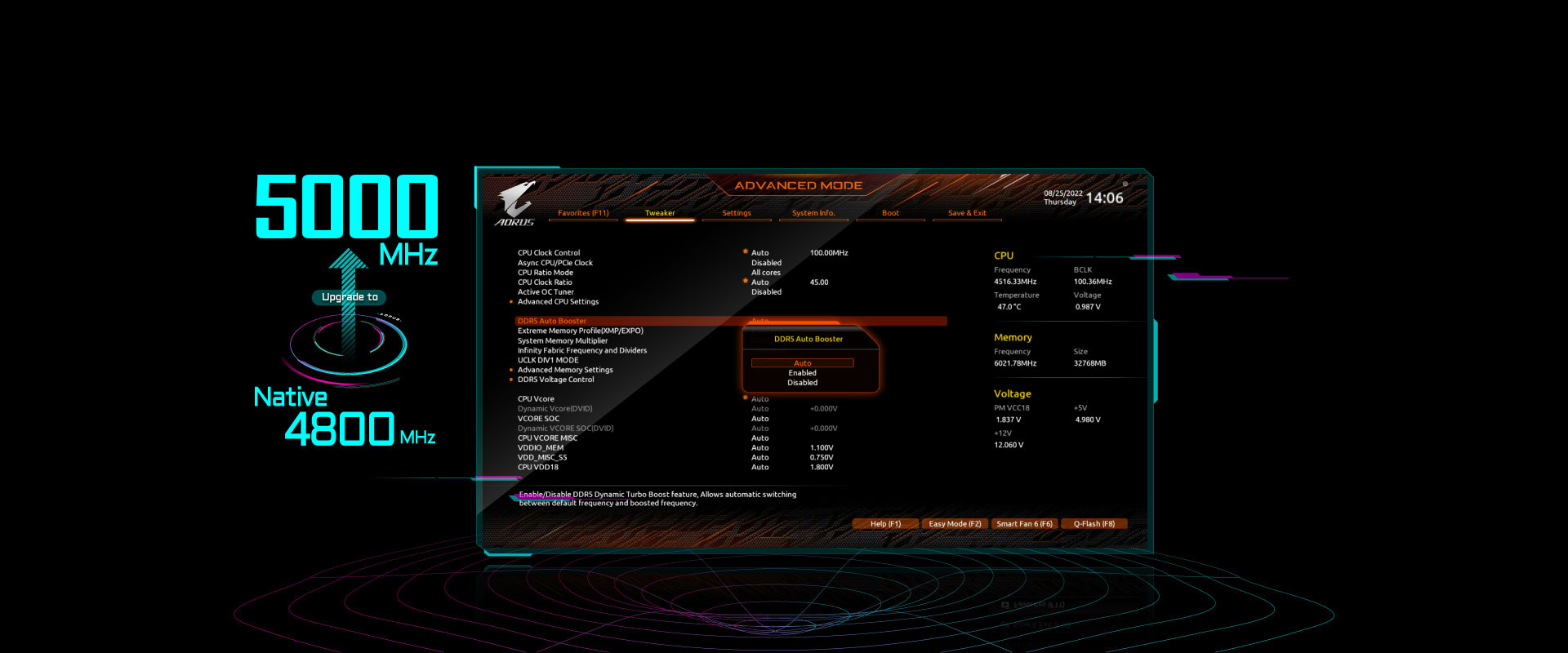
There are not so much configuration need to be finished. And I couldn’t find anything related to change from onboard GPU to dedicated GPU HDMI, and many things are setup with “auto”. Thus, I assume the hardware nowadays are intelligent enough to support all kinds of mode without manually setup.
First issue - there is no HDMI output after I enabled CSM(Compatibility Support Module)
I searched for some topics about install a new GPU device, which should not work nowadays. It said I need to enable CSM firstly and then enable the dedicated GPU from PCIE. And I also use
cuda_12.3.2_545.23.08_linux.run
to install the cuda and nvidia driver, of course, it doesn’t work at all for current stage.
However, after I enabled the CSM, it require a reboot and I found I couldn’t get any output from HDMI. Then I try to plug the HDMI cable into my 4090 HDMI port. Still nothing output.
I had tried to reboot for many times and I couldn’t get the output. I was afraid I hot-plug-in-out the HDMI and cause some trouble. Suprisingly, somebody in stackoverflow said it is because the change could let the boot process can’t find the location of bootloader, I can fix it by:
hold the CMOS button reset the bootloader.
I tried and it still doesn’t work. I was very disappointed, and try to remove the 4090 and try again. It didn’t work as well. I did it twice, and that time when the boot start I was playing with dog, after 10 mins, I found it booted and go into the OS terminal.
Then I realized in the stackoverflow, the people who answer the question also mentioned it may take 5-30mins to let the bootloader to learn. That’s amazing, sometimes waiting is a good option.
After that I could use the nvidia GPU. run nvidia-smi in terminal:
+---------------------------------------------------------------------------------------+
| NVIDIA-SMI 545.23.08              Driver Version: 545.23.08    CUDA Version: 12.3     |
|-----------------------------------------+----------------------+----------------------+
| GPU  Name                 Persistence-M | Bus-Id        Disp.A | Volatile Uncorr. ECC |
| Fan  Temp   Perf          Pwr:Usage/Cap |         Memory-Usage | GPU-Util  Compute M. |
|                                         |                      |               MIG M. |
|=========================================+======================+======================|
|   0  NVIDIA GeForce RTX 4090        Off | 00000000:01:00.0 Off |                  Off |
|  0%   33C    P8               8W / 450W |    719MiB / 24564MiB |      0%      Default |
|                                         |                      |                  N/A |
+-----------------------------------------+----------------------+----------------------+

+---------------------------------------------------------------------------------------+
| Processes:                                                                            |
|  GPU   GI   CI        PID   Type   Process name                            GPU Memory |
|        ID   ID                                                             Usage      |
|=======================================================================================|
|    0   N/A  N/A     26820      C   /usr/local/bin/ollama                       710MiB |
+---------------------------------------------------------------------------------------+
Second issue - netplan and device name issue
Netplan
After the bootloader was recovered I meet another issue. The booting process becomes very long and I couldn’t ssh to the workstation. After pulling the log:
[TIME] Timed out waiting for device xxxxxxxxxxxx/wlpxxs0.
[DEPEND] Dependency failed for WPA supplicant for netplan wlpxxs0.
I do some search and found it was because the netplan was down for the device wlp14s0.
Then I go for the solution:
Try to config and reboot. It always failed.
sudo netplan [--debug] apply
([–debug] means optional)
I will always get:
WARNING:root:Cannot call Open vSwitch: ovsdv-server.service is not running
so the question is how to restart the ovsdv-server.service.
I tried:
systemctl status ovsdb-server.service
systemctl restart ovsdb-server.service
Nothing exist, then I realized that I need to uninstall and re-install the module
sudo apt-get install openvswitch-switch-dpdk
But how to get the network, my workstation can only use wifi because the router is too far away.
And I change the configuration in the ‘/etc/wpa_supplicant.conf’
Then I use wpa sufficant to configure my wifi to login and install all necessaries.
But when I use the:
sudo dmesg | grep wlan
I found the wlp15s0 is reset as the wlan0 rather than wlp14s0 in the booting log.
Then I know I should change the configuration in ‘/etc/netplan/xxx.yaml’
  wifis:
    wlp15s0:
Then everything works.
Conclusions
This is a very tedious debug work, but it also teach me how to narrow down the problem step by step, find the root cause for the chained problems.
And it also tell me how to do some search use the log, dmesg, and the devices naming, configuration. For me it’s a good experience.